Managing access to your Google Business Profile (GBP) is one of the most critical decisions you’ll make for your business’s online presence. Whether you’re adding a team member to help with daily operations, delegating responsibilities to an agency, or transferring complete control during a business transition, understanding how to assign and change ownership roles is essential
The key challenge most businesses face isn’t just knowing how to add people to their profile—it’s understanding which role gives them the right level of access without compromising security or control. Assigning the wrong role can lead to unwanted profile changes, or conversely, can leave your team unable to perform necessary updates
This complete guide walks you through the exact process of assigning and changing ownership roles in Google Business Profile, with clear explanations of what each role can and cannot do.
Owner vs Manager: Understanding GBP Roles
Before you invite anyone to manage your Google Business Profile, it’s critical to understand the difference between the two primary roles: Owner and Manager. Each role carries distinct permissions that directly impact who can make changes to your profile.
| Capability | Owner | Manager |
|---|---|---|
| Edit business information | ✅ Yes | ✅ Yes |
| Respond to reviews | ✅ Yes | ✅ Yes |
| Add & manage photos | ✅ Yes | ✅ Yes |
| Create posts and updates | ✅ Yes | ✅ Yes |
| Add or remove users | ✅ Yes | ❌ No |
| Transfer ownership | ✅ Yes | ❌ No |
| Delete the profile | ✅ Yes | ❌ No |
| Manage user permissions | ✅ Yes | ❌ No |
Owner Role Capabilities
The Owner role grants the highest level of access to your Google Business Profile. An owner can edit all business information, manage customer reviews, upload photos and videos, create promotional posts, and most importantly—add or remove team members and transfer ownership to another person. If you’re the business owner or primary decision-maker for your online presence, this is the role you should hold.
Owners also have the exclusive ability to delete the profile entirely, accept Google-suggested changes to your business information, and link your profile to Google Ads. This comprehensive access level makes the Owner role suitable only for trusted individuals within your organization.
Manager Role Capabilities
The Manager role is designed for team members who handle day-to-day operations of your Google Business Profile. Managers can edit nearly everything an Owner can—including business hours, contact information, photos, reviews, and posts. However, managers cannot add or remove other team members, transfer ownership, or delete the profile.
The Manager role is ideal for:
- Social media managers updating content regularly
- Front-desk staff responding to customer inquiries and reviews
- Marketing team members creating promotional posts
- Agency partners managing your profile on a day-to-day basis
How to Assign & Change Ownership Role: Step-by-Step Guide
Follow these steps to add a new owner or manager to your Google Business Profile. The process takes approximately 3–5 minutes.
Step 1: Log In to Your Google Business Profile
Navigate to business.google.com in your web browser. Sign in using the Google account email associated with your business profile. You must be logged in as the Primary Owner or an existing Owner to add new users.
Important: Only accounts with Owner-level permissions can add or remove other users. If you’re a Manager, you won’t see the option to invite new team members.
Step 2: Select the Business Location
If you manage multiple locations, you’ll see a list of all your business profiles. Click on the specific location for which you want to assign or change the ownership role. Select the exact business property where you need to modify access permissions.
Step 3: Click the Three-Dot Menu
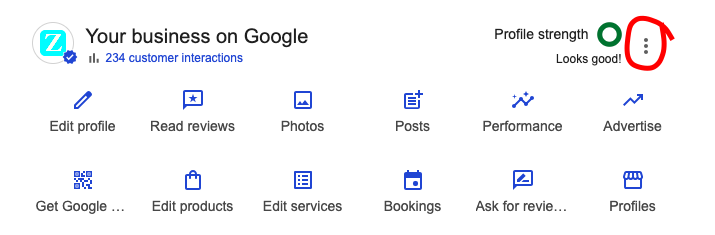
Look for the three-dot menu (⋮) icon in the top-right corner of your Google Business Profile dashboard, next to the Profile Strength indicator. Click it to reveal the dropdown menu with additional options.
Step 4: Select “Business Profile Settings”
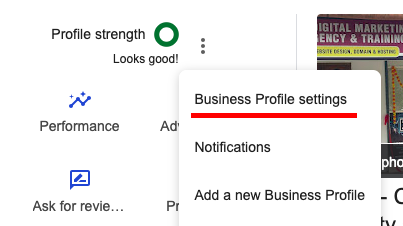
From the dropdown menu, click on “Business Profile Settings” at the top of the list. This will open the full settings panel for your selected business location.
Step 5: Click “People and Access”
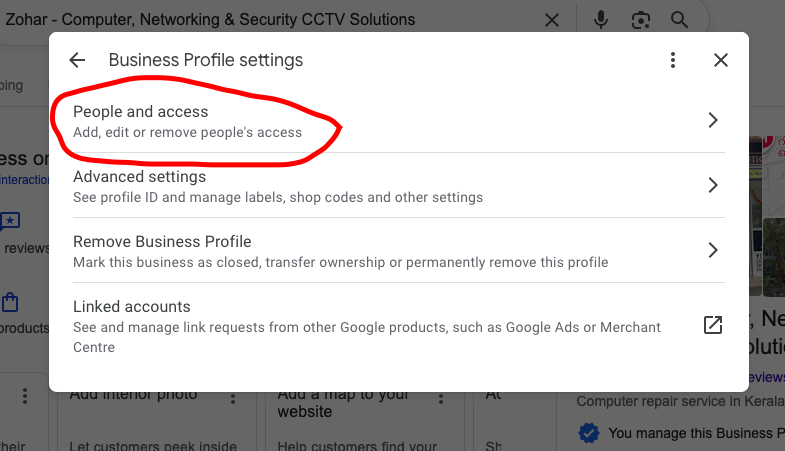
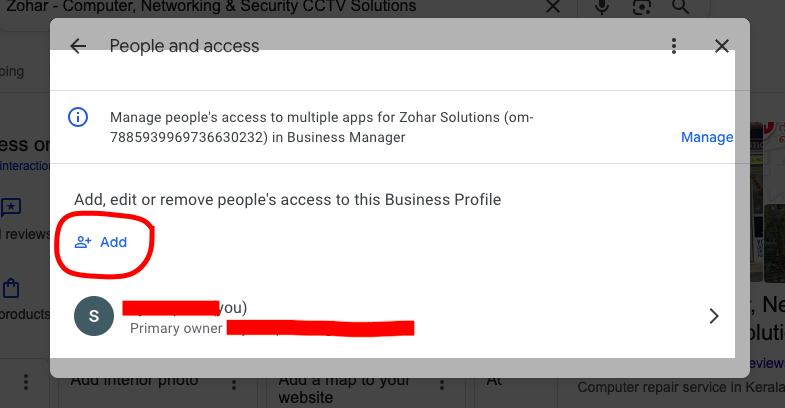
In the Business Profile Settings page, locate and click on the “People and access” option. This section displays all current users who have access to your profile, along with their assigned roles.
Step 6: Click the “Add” Button
You’ll see a blue “Add” button (often displayed as a “+” icon) in the top-right corner of the People and Access section. Click it to open the invitation dialog.
Step 7: Enter the Email Address
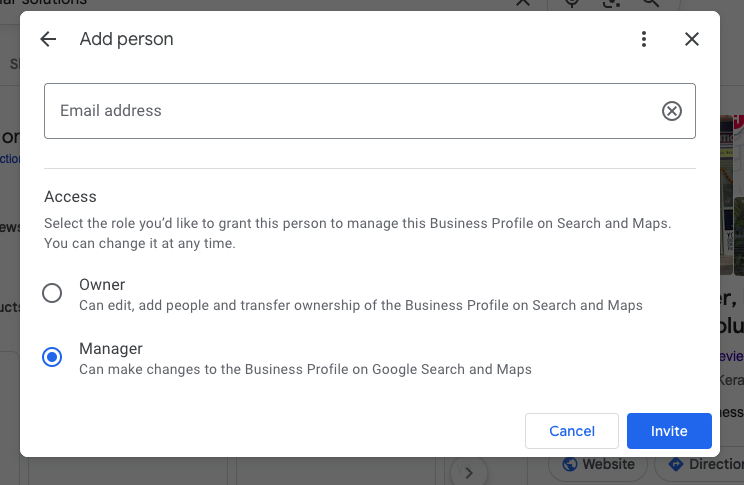
A dialog box will appear prompting you to enter the email address of the person you want to invite. Type their complete Google account email address. Ensure the email is accurate—invitations sent to the wrong email won’t reach the intended person
Step 8: Select the User Role
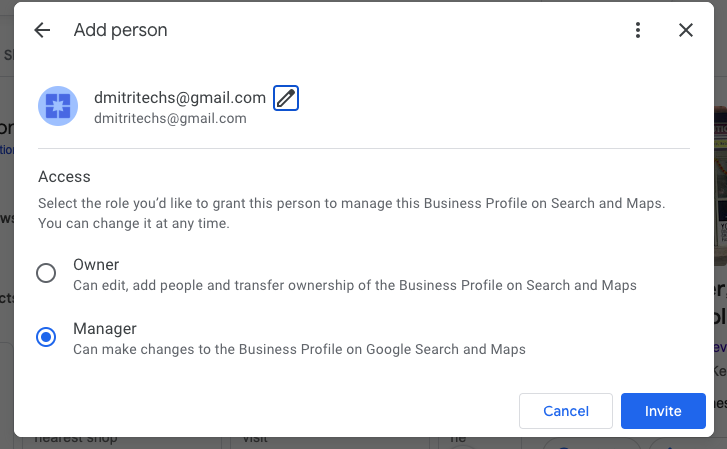
After entering the email, you’ll see a dropdown menu with two role options: Owner or Manager. Choose the role that matches the person’s responsibilities:
- Select “Owner” if this person needs full control, including the ability to add/remove users and transfer ownership.
- Select “Manager” if this person only needs to update content and manage daily operations.
Step 9: Click “Invite”
Once you’ve selected the appropriate role, click the “Invite” button to send the invitation. Google will immediately send an email to the specified address with instructions to accept the access request.
Step 10: User Accepts the Invitation
The invited person will receive an email from Google with a link to accept the invitation. They must click the link and accept access before they can manage the profile. Until they accept, their name will appear in the “People and access” section with a “Pending” status.
Changing an Existing User’s Role
If you need to change someone’s role from Manager to Owner (or vice versa), follow these steps:
- Go to Business Profile Settings → People and access
- Find the person’s name in the user list
- Click on their name to reveal role options
- Select the new role from the dropdown
- Click “Save” to confirm the change
The user will be notified of the role change via email.
What Happens After Ownership Transfer?
If you transfer Primary Ownership to another user, Google initiates a 7-day holding period. During this time, the new primary owner has limited capabilities:
- They cannot remove other owners or managers
- They cannot delete the profile
- They cannot recover a deleted listing
- Normal profile editing remains available
After the 7-day period, the new primary owner gains full permissions. The previous owner’s role will automatically change to Owner (unless removed), allowing them to continue managing the profile with slightly reduced permissions.
Pro Tips for Managing GBP Access
1. Use Owner Role Sparingly
Only assign the Owner role to trusted individuals who need full control. For most team members, the Manager role provides sufficient permissions for daily operations.
2. Document Who Has Access
Keep a record of who has access to your profile and their assigned roles. Regularly review the “People and access” section to ensure all listed users should still have access.
3. Remove Access Promptly
When an employee leaves or you stop working with an agency, immediately remove their access from your profile. Click their name and select “Remove” to delete their access.
4. Transfer Ownership Before Parting Ways
If you’re selling your business or ending a relationship with your primary owner, transfer ownership first. Don’t wait until the person is unavailable—you may lose control of your profile.
5. Never Share Your Password
Always use the official invitation process to grant access. Sharing your Google account password is a security risk and violates Google’s terms of service.
6. Use a Business Email for Primary Owner
Ideally, assign the Primary Owner role to a business email address (e.g., owner@yourbusiness.com) rather than a personal Gmail account. This ensures continuity if the individual changes roles or leaves the company.